Showing posts with label Windows. Show all posts

What is cda file? How to convert cda to mp3 files?

What is cda file?

Files with .cda extension are not audio files, but are the virtual files generated by Microsoft Windows for each audio track in audio disc. cda is an abbreviation Compact Disc Audio. cda files are generally of 44 bytes in size and contains information about from where does particular audio track in CD starts. As these files are not the actual audio files you cannot play these files using player like VLC and copying these files to your mobile devices or computers is not simply enough to play music.

How to run Turbo c in windows 7 using Dosbox

You might have faced difficulty while running Turbo C in windows 7, it is because Turbo C is not compatible with  Windows 7, as it was with earlier versions of Windows like XP and Vista. Many students and programmers would have faced this difficulty to load Turbo c in windows 7, so in this post I am going to show you how to load Turbo c in Windows 7.
  • In order to load turbo c you need to have dosbox, which is an emulator that recreates a MS-DOS compatible environment. Dosbox is mainly used to run dos games and old applications. We will use it to run Turbo C in windows 7. Download Dosbox 0.74 and install it as you install any other software.

How to get source code from apk file

What is .apk file?
 APK file is nothing but Android Package File(APK). APK is the file format used to distribute and install application software and middleware on Google's Android operating system.


Apk Files are Zip file formatted packages based on the JAR file format, with .apk extension. Apk files contains all program resources and code i.e it contains .dex files, resources, assets, certificates, and manifest file.


Close all Windows With Single Click

Sometimes we open lot of Windows applications to get our work done. But the main task starts after completing work. The most hectic task is to close those Windows which were opened while working. Closing them one by one involves lot of time and when we are in rush we directly close our Windows which may result in loss of data.

The point is what to do? Even if we use task manager we have to click on ‘End Now’ option. We usually use Alt+F4 combination, but sometimes it also doesn’t work. Tool known as Close All can be used to solve hectic situation.

Close All is a portable tool that allows to close multiple Windows with one click.When we install this application, it creates a small icon of the tool in Quick Launch bar as shown in the screenshot below.

Installing Close All:-


Close All Windows is a very simple utility that doesn’t require installation. No settings are stored in the Windows Registry or file system. Just follow the steps below to set it up on your computer.

  • Download the ZIP archive and extract it on your hard drive.
  • Open the extracted folder, right-click CloseAll.exe and choose Send To -> Desktop (create shortcut) from the context menu.(If system you are working is 64 bit then use x64 folder)
  • Switch to the Desktop and rename the created shortcut to “Close All” or whatever you want.
  • Now you can drag this shortcut to the Quick Launch Bar or to the Windows 7 Taskbar for quick access.

Advanced Options:-

If you want to prevent certain applications from being to be closed by Close All, you can add a simple exclusion list to the CloseAll.exe command line.

  • Right-click the shortcut and choose Properties from the context menu:
  • Go to the Shortcut tab, Target and add -x="app-to-exclude.exe":
  • You can separate multiple values with “|” (pipe), 
  • example:   -x="vlc.exe|firefox.exe|msnmsgr.exe"
  • Click OK to save the shortcut properties.
  • Now you can use it normally but with some excluded application to be closed.

Download Close All


Let Windows system speak whatever you write

It would be great if your computer speaks out what you write.As you know that windows operating systems provide a  built in voice that can be customized from control panel. also it can be used for various softwares and scripts as done in this post.You can use it just for fun or for knowing the pronunciation or to check the system sound.Whatever the purpose may me here is the VB script that can be used to make windows system speak out what you need.

How To Run µTorrent In Hidden and Locked Mode

Few days back I received a mail, asking me to show the way to run a µTorrent in  hidden mode at start-up. Here in this post I will describe how to hide µTorrent from being displayed at start-up and enabling password protection to access it.This can be achieved by the additional features supported by the µTorrent.Perform following simple steps to hide µTorrent.

What is System Idle Process?


You would  have come across the process running in your system called "System Idle Process". Anyone who had used Windows  must be knowing about it but recently one reader asked me about it and why it is consuming so much CPU memory when other applications are hardly able to run.

Download Google Books In PDF Format

Some of my blog readers asked me about how to download Google books, In this post I will describe the tool that allows anyone to download all readable books and magazines from Google Books. Google Books Downloader is a free application for the Windows and Mac operating system. The program needs to be installed, and it is  optional to install Arccosine, which is not needed for the program’s core functionality.

Remove Applications Manually from the Context Menu in Windows

Last time we saw how to start command prompt from the context menu, here we see how to remove commands from context menu. As windows accumulates context menu items any time you install several applications. Not all applications end up on the context menu but enough do so over time that the menu can become cluttered. You might find yourself wondering, “How did that get there?” You may not want it on the context menu, but it is there and you are stuck with it. Or are you? No, you are not.

How to start Command Prompt By Right Clicking a Folder

Many users works on command prompt to perform some critical system tasks. When command prompt start it loads into users home directory so we need to change our working directory from home directory to the specific directory manually, but every time doing so is tedious work and a long process.

Creating bootable USB using Diskpart

Some of My friends asked me how to create a bootable USB drive to install windows and at that time I was unable to help them but after spending some time on internet I found the solution and got a way to do it, so in this article I will describe how to do it with nothing more than the Windows DVD and a separate Windows workstation.

Before we begin you will need to know a few things. You will need to know the drive letters of your drives such as the DVD drive with the Windows 7 media, the drive letter the USB stick.

This is How Windows 8 Explorer will Look with Ribbon Menu Interface

Many had speculations about how will new Windows 8 Explorer look and there were news about unveiling Ribbon Menu Interface. To break the ice, Microsoft itself revealed and confirmed the Windows 8 Explorer and yes, it has famous Ribbon interface. Windows 8 Homescreen already created buzz and now let’s have look at Explorer.

Ribbon displays the most important commands in prominent locations while also exposing loads of other minor tools, organizes commands conveniently in handy groups and it follows the design line opened by Office and Microsoft Paint, making it easier for people to get used to the new interface.
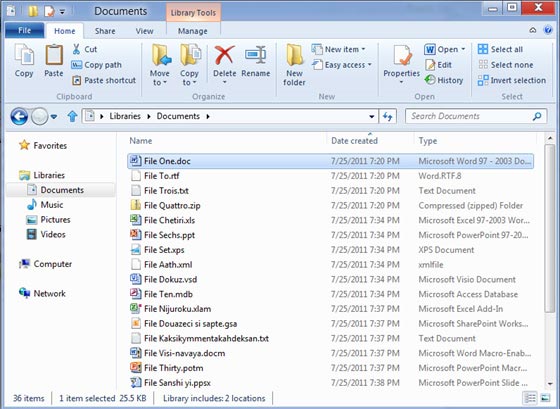
Windows 8 Explorer New
Windows 8 Explorer with Ribbon Menu
 This was finalized by Microsoft after researching and here is an outcome of their research.
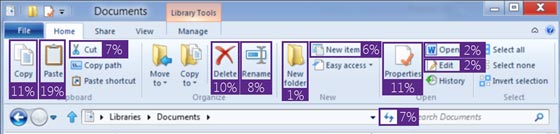

Percentages of use of each of the main functions of Windows Explorer
Another interesting finding was that, we use the contextual menu for almost everything ignoring the main Explorer interface. That is why the development team wanted Windows 8 shake up the Explorer bar and add ribbon which despite of the controversy, has been very successful in Office.


Advantages of Ribbon Interface

  1. More visibility for the most important commands
  2. Tabs and icons help you find the commands before
  3. Shows little known functions
  4. Keyboard shortcuts for all functions
  5. Customizable Quick Access Toolbar
So, let’s have look at each feature of Windows 8 Explorer


 Home Tab


The main tab of the new Windows Explorer 8 is Home, which contains the commands used by users. Interestingly, the appearance of useful commands such as Copy path (Copy Path) and the return of “Up” button (the blue arrow next to the directory).


Sharing tab


Many of the operations we do with the files are intended to share with others. The Sharing tab has buttons to send files by mail, compress them into a Zip file, print, fax or send them to other local network users.


View Tab
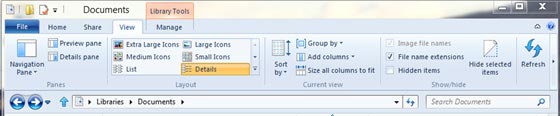

View Options is, where there are buttons for changing the position and visibility of the sidebar, the view type and order of the files. The newest are the boxes to show and hide files and extensions , which should be carried out before opening multiple windows.

File Menu


The File menu has also changed. There are shortcuts to open a new window, open the command line in the path of the open folder, clear the history and customize the browser.


Contextual Tabs


Like Office, there are tabs that only appear in certain situations . For example, do a search, the relevant tab appears, with options that allow you to filter and refine results:


Mounting ISO images and improved file operations
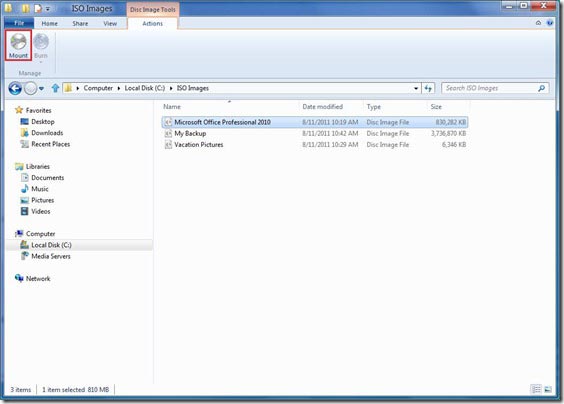

Windows 8 can mount ISO without problems, but can not create them.
The ribbon menu is not the only new thing in Windows Explorer 8: The development team has been working hard also in less visible areas. One of the most remarkable is that, finally, Windows 8 can mount ISO images without needing extra software.
With regard to copying, deleting and renaming files, Windows Explorer 8 has added along awaited feature: Grouping operation and Pause Button.

Windows 8 Copy Progress Bar - One for all operations
The file conflict was another critical section to improve. Microsoft developers have thoroughly studied the issue and passed the box three options for Windows 7 a that shows the old files and a newer side and another, to choose more criteria.
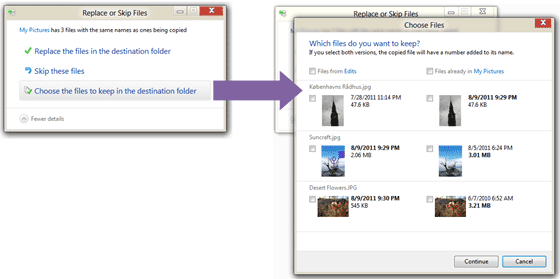
Filename Conflict during Copying
In short, Microsoft is listening to users , a tactic that proved a major success with Windows 7 – and adding features that will make unnecessary the use of certain non-official accessories. Of course, many of these firsts came a little late.
If you want to see the new Windows 8 Explorer in action check out the video MP4 file both in high and low quality.

Adding And Deleting Registry Key in Windows


This section, method, or task contains steps that tell you how to modify the registry. However, serious problems might occur if you modify the registry incorrectly. Therefore, make sure that you follow these steps carefully. For added protection, back up the registry before you modify it. Then, you can restore the registry if a problem occurs.


This step-by-step article describes how to add, modify, or delete registry subkeys and values by using a Registration Entries (.reg) file. Regedit.exe uses .reg files to import and export registry subkeys and values.